One Master Library. Fix and protect it, find and understand it,
create from it, capture and share it — and keep control of all of it,
on your own machine.
Date repair is still the foundation — but Version 3 grows it into a
complete, premium photo suite. At the center is your one Master Library —
storage you control — with everything else orbiting it. PDR runs locally
from your Windows PC and never uploads your library to Photo Date Rescue.
The PDR Orbit
Seven things PDR does with your library — with
Ask PDR connecting every part.
Choose an area to see it.
Your Master Librarystorage you control
Plan & Protect
Estimate the space your photos and videos will actually need before you commit to a drive.
Compare the drives already connected to your PC on capacity, free space, speed, connection and reliability.
See the risk in using your Windows system drive, and where a fast Library Drive beats slower network storage.
Built on Security · Privacy · Ownership — the
foundation everything sits on.
Your working Master Library can live on a suitable internal drive, an
external Library Drive or a supported network/NAS location — chosen for
the speed and capacity you need. Not every network path is equally fast,
so the Library Drive Advisor helps
you choose well.
Plan storage and backups →
Which of these sounds most like you?
This changes the order of what follows, and nothing else.
Every capability stays on this page whichever you pick. Nothing is added, nothing is
taken away, and no part of PDR belongs to one kind of person rather than another.
The choice is not saved to your computer and is not sent anywhere — it sits in
this page’s address so you can link to it, and it is gone when you leave.
Plan & Protect
The Library Drive Advisor
A serious photo library deserves a serious home. Before you commit
years of memories to the wrong place, the Library Drive
Advisor helps you estimate the space you'll need — across
photos, videos and every source — then looks at the drives already
connected to your PC and compares them on capacity, free
space, speed, connection type and reliability. It flags the
risk of using your Windows system drive, distinguishes a fast working
Library Drive from slower NAS or network storage, and explains the
trade-offs between NVMe/M.2, SATA SSD, external SSD and
budget HDD, so you can pick a permanent home with room to grow.
It's guidance, not a setup wizard — never a stream of "next, next,
next".
Select a number on the screenshot to jump to what it points at.
1Answer one honest question. Roughly how much
photo and video data do you have in total — external hard
drives, personal cloud, memory sticks, NAS, old phones, cameras,
old laptops? An estimate is fine; PDR adds a buffer.
2Get routes in order, with the trade-off spelled out.
An internal SSD, an external SSD on a fast connection, freeing
space on a drive you already own, a large external HDD, or
splitting the collection into batches — and what each one
costs you.
3Real-world speeds, color-coded. NVMe M.2 at
1,000–5,000 MB/s down to cloud sync at
1–20 MB/s, so the options that will make your library
feel slow are obvious before you buy anything.
4You keep the decision. “This is guidance,
not a blocker” — you can still choose any Library
Drive you like. PDR only makes sure you choose it knowing what
it means.
Add sources — folders, ZIP archives and external drives, including
Google Takeout export structures — into one
workspace. PDR reads date signals from EXIF, video metadata,
Takeout JSON and filename patterns, then gives
each photo a confidence-scored recommendation labeled by how the date
was found. Apply the run as copies to a new location:
your originals are never touched, duplicates are skipped, and you can
choose to write the corrected date back into the EXIF.
Select a number on the screenshot to jump to what it points at.
1Every source, analyzed together. Thirteen
folders, archives and drives are loaded here — holiday
folders, a Dropbox folder, a 762 MB grab bag — and PDR
treats them as one set: 1,287 photos and 126 videos, 4.1 GB.
2Confirmed — 1,164 (82%). The date came
straight from the photo's own embedded metadata. Nothing was
guessed.
3Recovered — 184 (13%). No usable metadata,
but a structured filename pattern gave the date away. PDR tells
you it did this rather than quietly writing it.
4Marked — 65 (5%). No reliable date was
found. These are renamed by fallback rules and flagged, not
invented — so you can come back to them.
5Duplicates — 19. Hash-matched copies of
files already in the run, skipped rather than written twice.
6Where the result lands. The Output panel names
the destination, shows the 4.1 GB the run needs against the
1.0 TB free after it, and lets you set the photo format.
1,413 files ready to process — written as copies, with your
originals untouched.
Memories relives the library as a chronological
timeline, and Albums let one photo belong to many
collections without ever duplicating a file. The
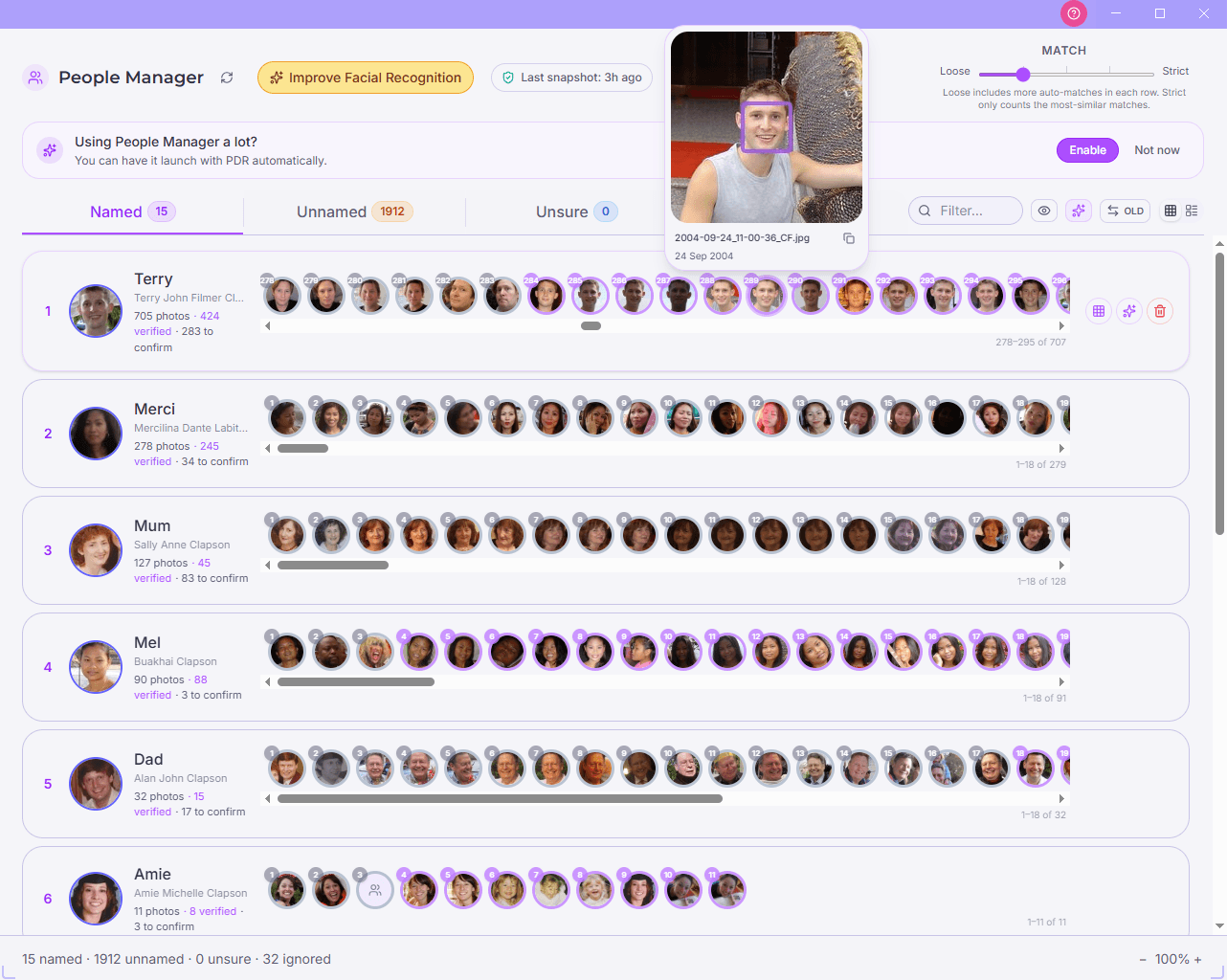
People Manager detects and clusters faces
on-device — name a person once and that name flows through PDR,
including into Family Trees. A folder of files becomes a library
you can actually navigate.
Search & Discover finds photos from the vaguest
clue, with a details panel for people, camera, exposure, location and
tags. Filter and combine those signals to surface exactly the moments
you're after — all read from your own metadata, on your own machine.
Select a number on the screenshot to jump to what it points at.
1Start with one word. “Sunset” typed
here takes this library from 472 items down to 60.
2Filter by how sure the date is. Confirmed 469,
Recovered 1, Marked 3 — so you can look at exactly the
photos whose dates still need a human eye.
3Narrow by place. Country and city, plus a GPS
switch for photos with coordinates, without them, or both
— all read from your own files.
4Always see what's left. “60 photos ·
0 videos of 472” updates as you stack filters, so you never
lose track of how far you have narrowed.
5Then read the file's own record. Filename,
original name, date, confidence and where that date came from
— here, Google Takeout JSON — plus type,
size, dimensions, camera, exposure and location.
The focus of the 3.0.x line is a genuine design studio. Arrange
layouts and frames, crop and add per-photo effects, style dividers and
layered backgrounds, and use a full text studio with per-word and
inline multi-color, fonts, effects and a format painter. Build
multi-page carousels at sizes like Instagram's
1080×1350, with an IG safe-zone, alignment guides and
Magic Resize. Every export goes through the same
engine that draws the editor, so what you see is pixel-for-pixel what
you get — ready for social posts, marketing and printable gifts. Work
is auto-saved as an editable project, and finished images land in the
"PDR Collages" album.
A signature, differentiating surface: build family trees and attach
library photos to the people in them. A focus-person model with
generation and branch controls and sibling/extended-family panels
connects faces across generations. Relationships always come from your
own data — never guessed from the layout — and trees export to PNG or
Print-PDF. No DNA, no surveys, no cloud.
Record your screen with resizable webcam bubbles — up
to 4×, and up to two live cameras at once — plus
on-device virtual backdrops (blur, portrait depth,
pixelate, scenes, a brand palette or your own picture). Switch to a
Cam-only full-screen mode, blend mic and voiceover with
system audio, and use manual or automatic zoom toward
your clicks. Content-protected blur regions keep private
details out of frame, and every backdrop and effect runs locally.
While you record you can also grab still screenshots
without stopping. And because you shouldn't have to record just to
take a screenshot, PDR includes a separate Screen Capture
tool that works on its own — grab the whole screen or just a
region you select, no recording required.
Move finished work wherever it needs to go. Send to
Phone transfers over your own Wi-Fi with a QR code and a LAN
transfer — no cloud round-trip. Print or Save PDF
to local and network printers, copy an image to the
clipboard, or drag-and-drop multiple files straight
out of PDR into any other app.
Local-first working — the desktop app runs entirely on your machine; your photos are never uploaded or retained
On-device AI — face clustering, captions, background removal and image enhance all run on your computer, never in the cloud
Workspace Recycle Bin — deleting a photo, collage or template is a soft delete you can restore; only a permanent delete reaches the OS Recycle Bin
Safe by design — date fixes are written as copies, so your originals always stay exactly as they were
You own it — your library, your device, your data; no account is required to start
Who it's for
One ecosystem, many ways to use it
Families
Repair decades of mis-dated scans and phone exports, let the People Manager name everyone, and build a Family Tree with real photos attached to each person.
Creators
Turn your library into Instagram carousels and collages in the design studio, then record polished tutorials with Screen Capture and share them anywhere.
Small businesses
Produce on-brand marketing posts and printable pieces with WYSIWYG export, and record product demos with virtual backdrops — all without a subscription to a cloud tool.
Archivists
Consolidate Google Takeout exports and exported photo libraries into one Master Library with confidence-scored dates, then keep Albums and Memories consistent without duplicating files on disk.
Ask PDR
A built-in companion that connects every part
Not sure where something lives? Ask PDR sits in the app's Help
& Support and lets you type a question in your own words — like
"How do I get my photos in?" or "Where do my collages
go?" It searches PDR's own curated, built-in help and shows the
single best answer, plus up to three related answers,
each with a link to read the fuller guidance in the right place.
It's completely offline: there's no download, nothing is sent to the
internet, and it never invents an answer — every reply comes straight
from PDR's built-in help, so nothing leaves your computer.
Getting started & guidance. New to PDR? The
website Guides walk through migrating from clouds, phones, scans and
social apps, and the Support page answers common questions. Inside the
app, an "update available" message shows the release notes each time PDR
updates itself.